Account settings
Learn how to update your Playbook account details, manage your account data, and delete your account.
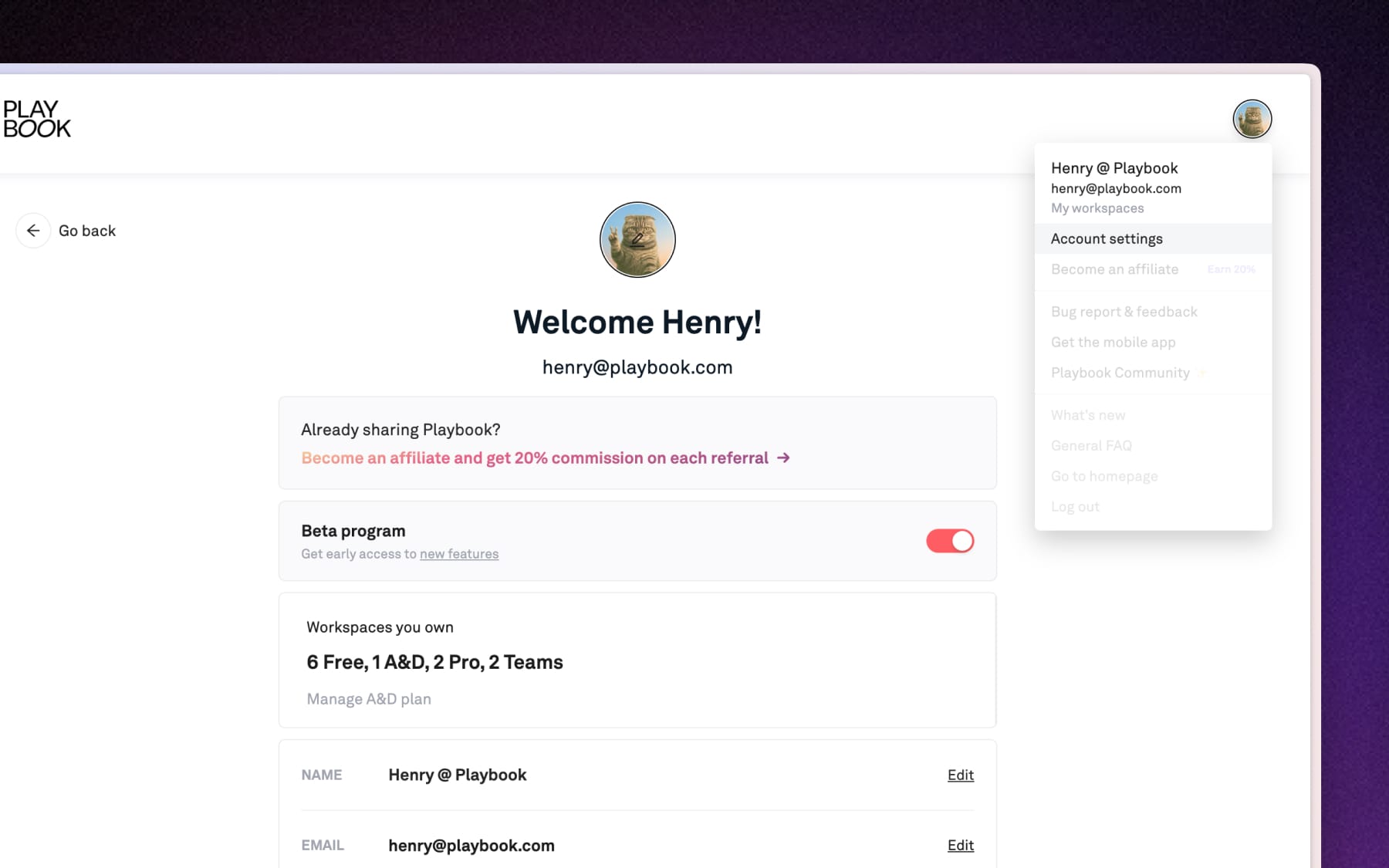
Account settings are dedicated to your personal profile and access. To reach this page, click on your Profile icon in the top right corner of any page, and select Account settings.
How to update your account avatar
Personalize how you appear to teammates and clients across all boards and comments.
- Navigate to the Account settings page.
- Click directly on the Avatar image (or the pencil icon overlay) at the top of the page.
- Upload a new image from your computer to update.
How to edit your name
Update your display name to ensure you're easily identifiable within your workspaces.
- Under the NAME section in your Account settings.
- Click the Edit button on the right-hand side.
- Enter your new name and save the changes.
How to change your email
- Under the EMAIL section
- Click the Edit button on the right-hand side.
- Enter your new email address and follow any prompts to verify your change.
How to reset your password
- Under the PASSWORD section.
- Click Edit to open the password reset fields
- Enter your current and new passwords to complete the update.
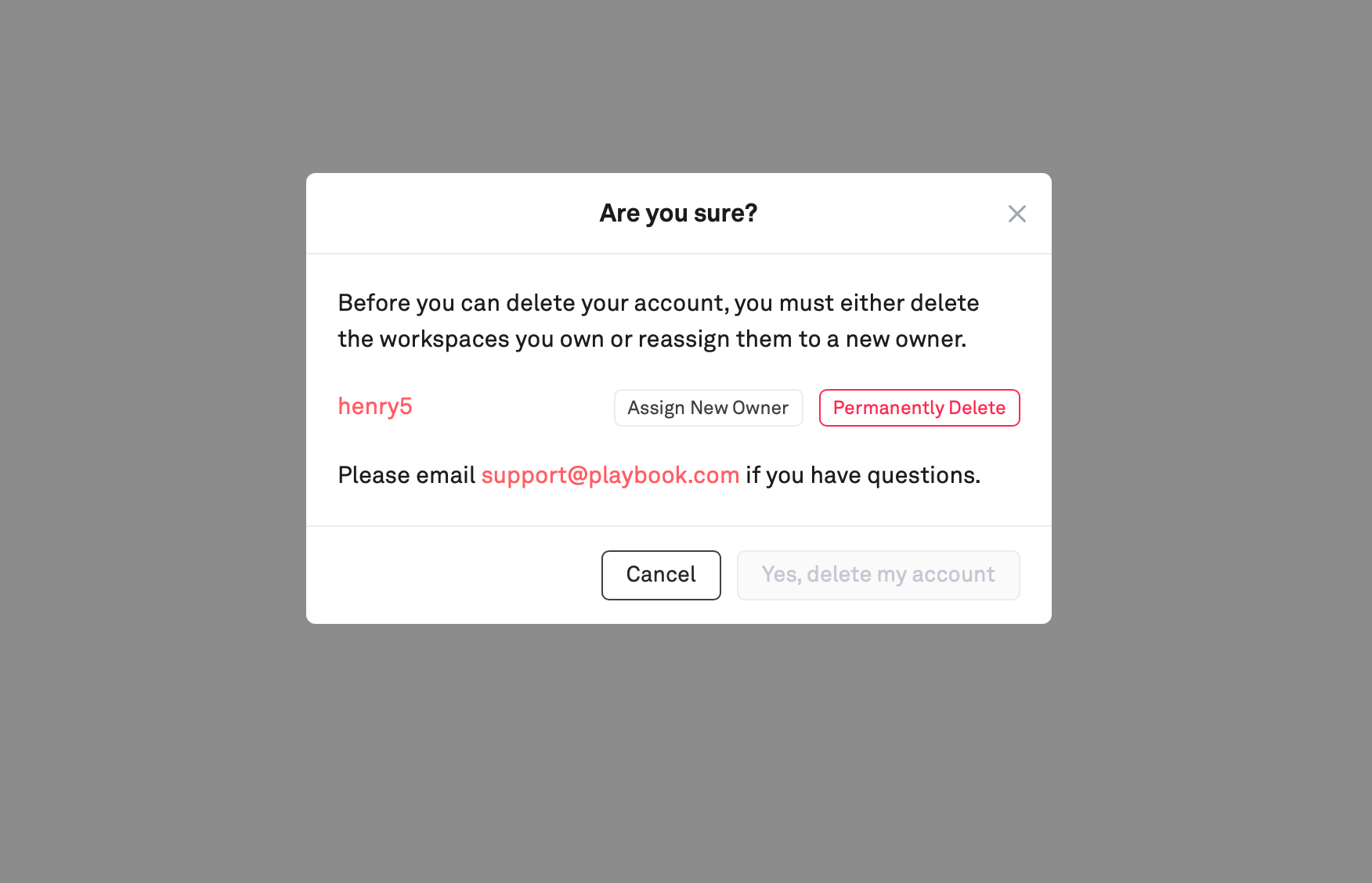
How to delete your account
If you need to permanently remove your Playbook account:
- Under the ACCOUNT section.
- Click Delete account to permanently erase your personal data on Playbook.
Note: You must either Assign a new owner to any workspace you own or choose Permanently delete. The "Yes, delete my account" button will remain disabled until one of these actions is completed.