Search & discovery
Learn how to Search to find assets by name and metadata, or use AI Search to discover assets based on their visual content.
Searching in Playbook feels more like a conversation than a database query. Whether you are using our core visual search or our advanced AI-powered search, Playbook is designed to understand what you're looking for, not just within what you typed.
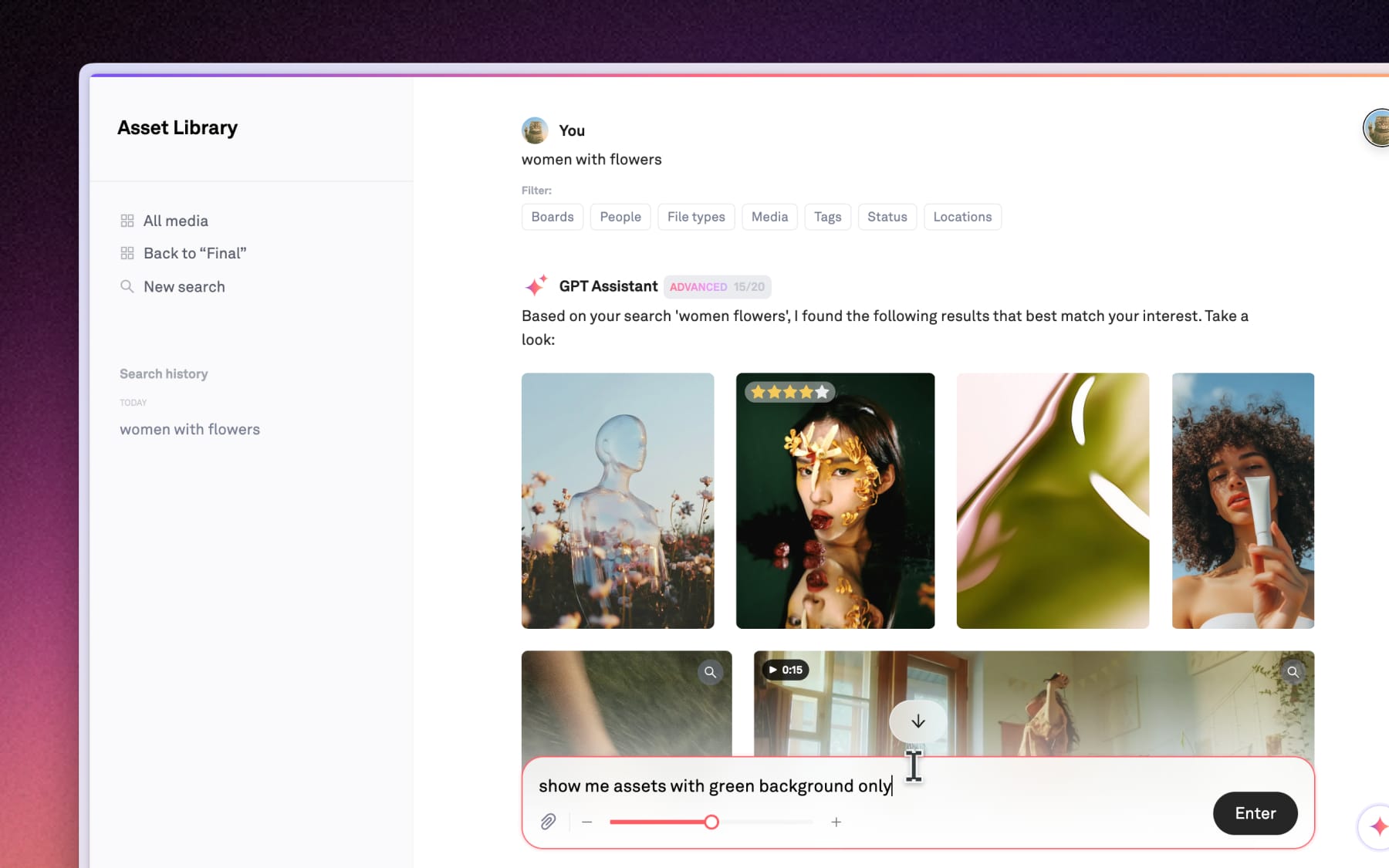
Understanding the Search layout
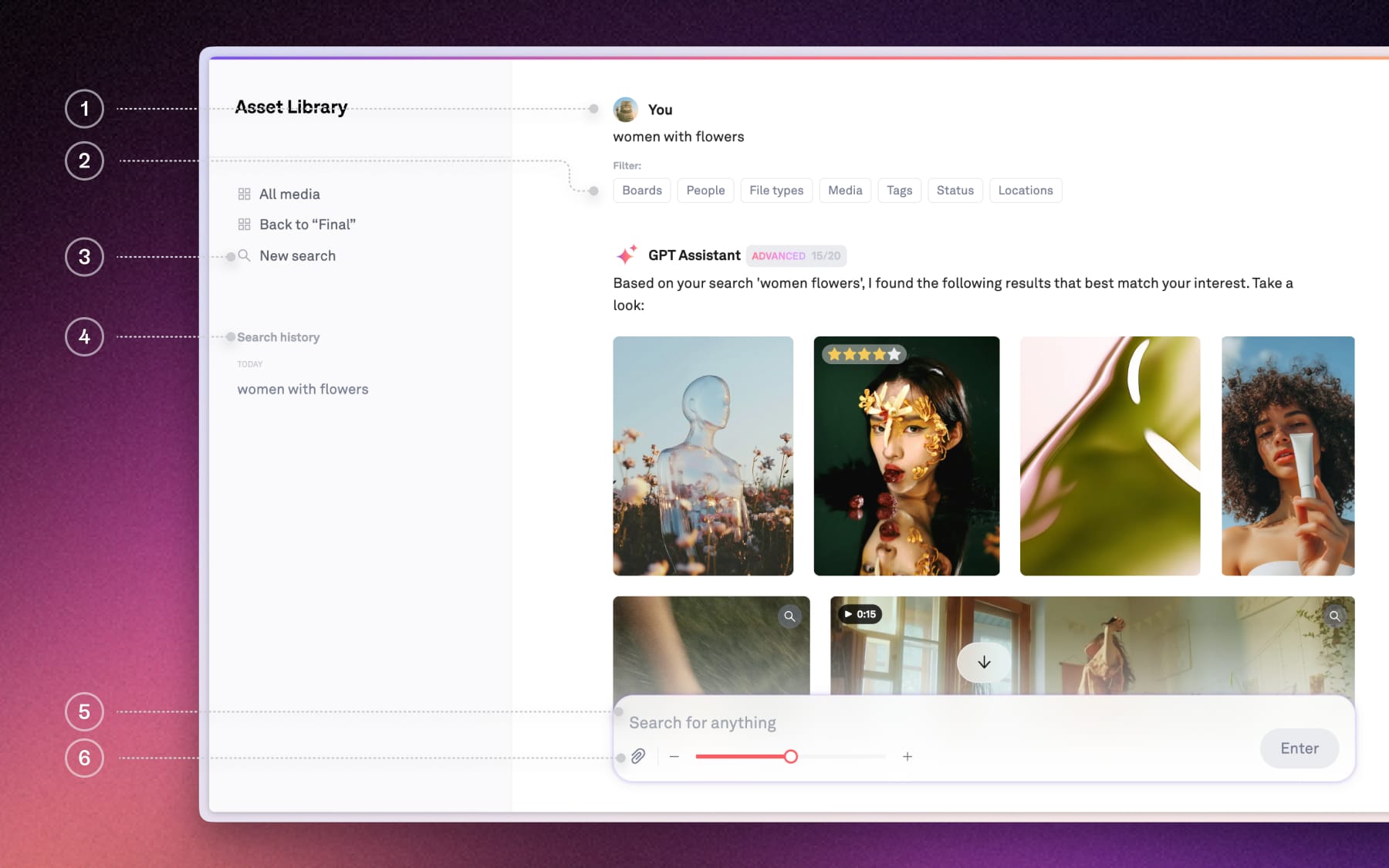
Playbook Search at a core is built to be conversational to keep you moving forward without losing your place. Here is a breakdown what you see when you start a search:
- Your query & results: Show exactly what you're searching with previews.
- Filters: Instantly narrow down your results by File type, Status, Tags, or even People if you're already know what to look for.
- New search: Click here anytime to exit your current query and start fresh.
- Search history: A list of your recent searches, making it easy to jump back to any previous search session.
- Follow-up: Use the search bar within your results page to ask follow-up like "PNG files only" to narrow down your current results.
- Image attachment: Paste or drop an image to attach a reference. Playbook will analyze it and find assets in your workspace that are visually similar in color and content.
Standard search
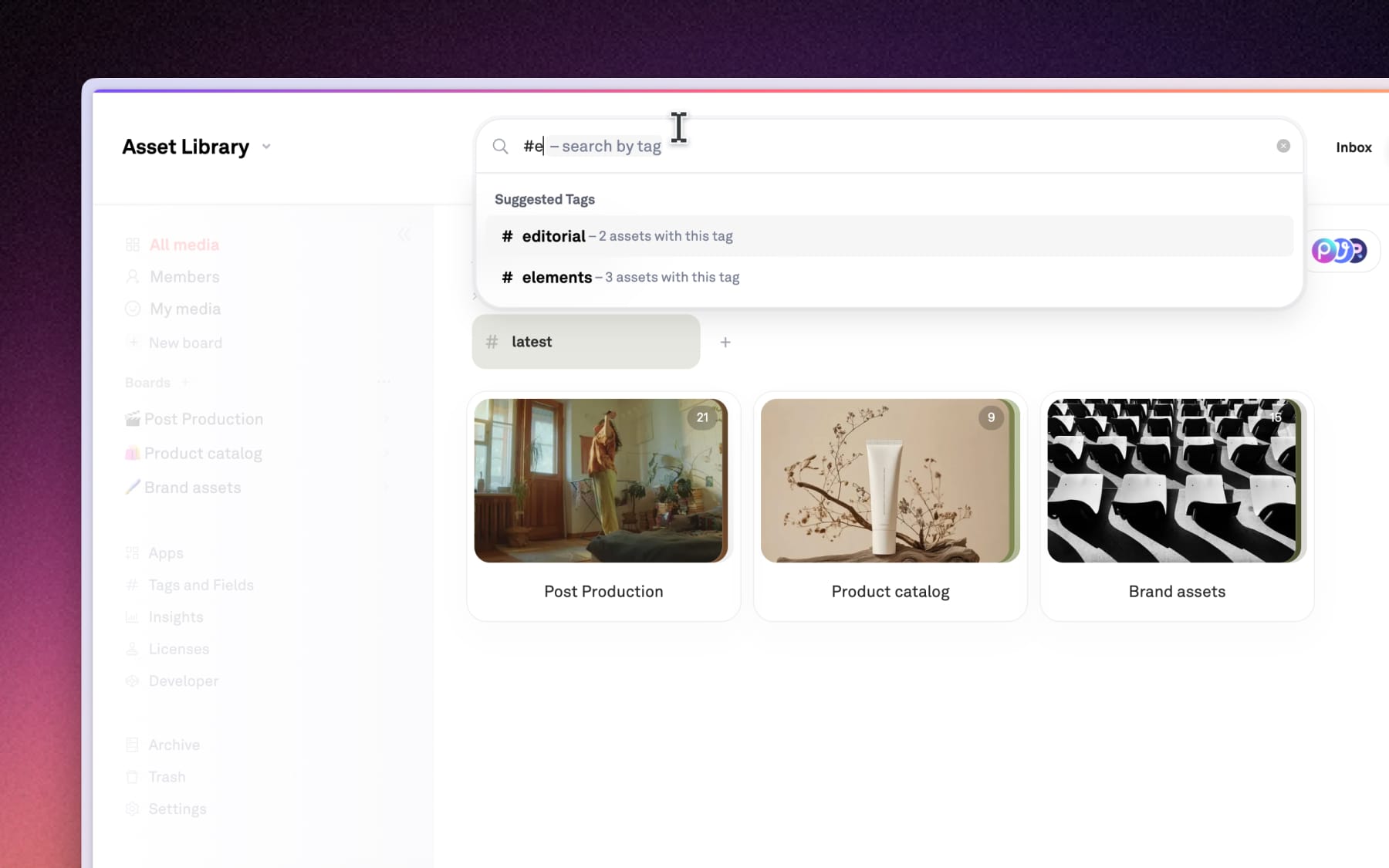
Available to everyone, this is the search you're already familiar with. It scans your workspace for specific data and metadata to find exact matches.
- Filename search: Quickly find an asset by typing its name (e.g., "Summer_Campaign...")
- Extension & type: Filter your results by searching for specific file formats like ".PSD," ".MP4" or ".PNG".
- Full-text search: Playbook can also search inside your documents (like PDFs or Word docs) to find specific words or phrases.
- Tags & fields: Find everything labeled with a specific tags or a custom field value.
AI Search
Available for Team and Pro workspaces, our AI search goes beyond the text. It "looks" at your query, images, and videos to understand the content and what you're actually looking for.
- Visual elements: You don't need to tag every photo; search for "mountains," "women" to find visual elements automatically.
- Searching by "vibe": AI search also handles and interprets abstract or subjective requests, like "minimalist product shots," "moody lighting"