
Libraries
Learn how to use libraries to give each team, brand or client its own space in your workspace, with its own boards, files and members.
Libraries split one workspace into separate spaces. Each library has its own boards, its own files and its own members, so only the people you add can see what's inside. Access is set once per library: everyone in a library can see every board in it, with the role you give them.
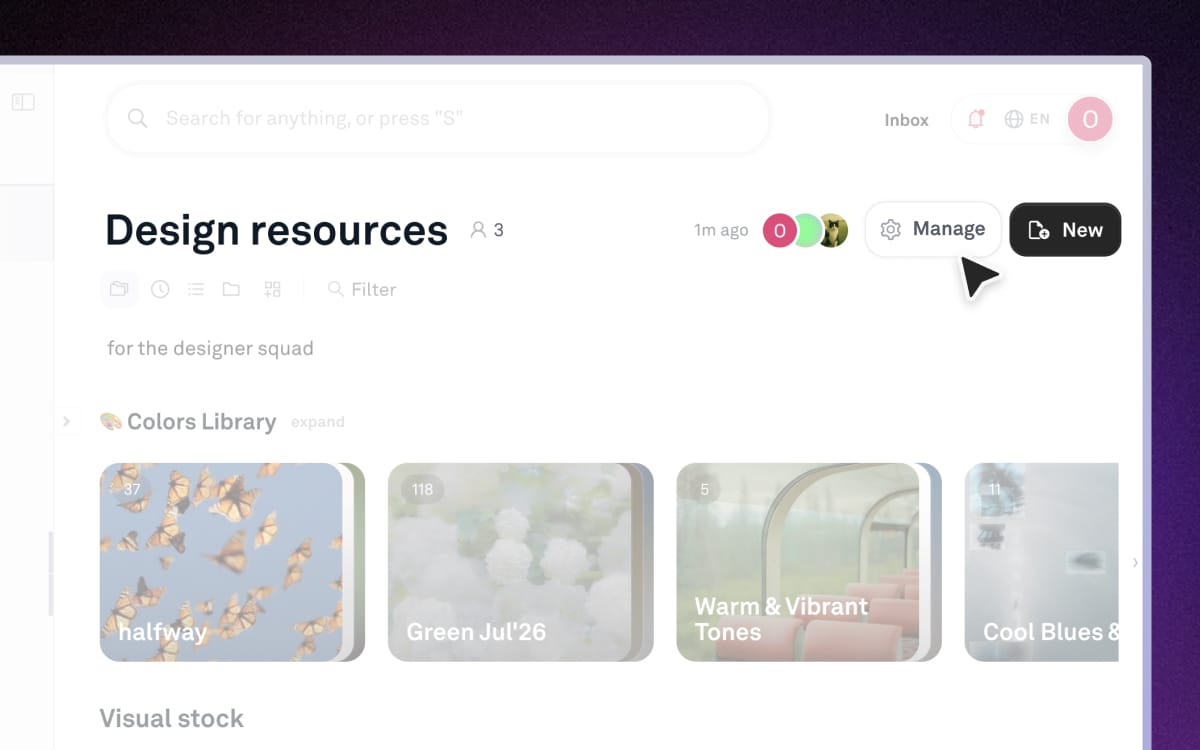
Libraries are available as an Enterprise add-on.
Understand your default library and roles
Every workspace starts with a default library, which is where your existing boards and files live.
- All workspace members are in the default library and their role there matches their workspace role. To change it, use Manage workspace members rather than the library.
- Admins are admins everywhere: workspace owners and admins are automatically Admin in every library, including new ones.
Inside a library, each person has one of three roles:
- Admin: can manage members, boards, and files in this library.
- Member: can upload and organize files, create and share boards, and comment in this library.
- Viewer: can view, download, and comment on files in this library.
Create a library
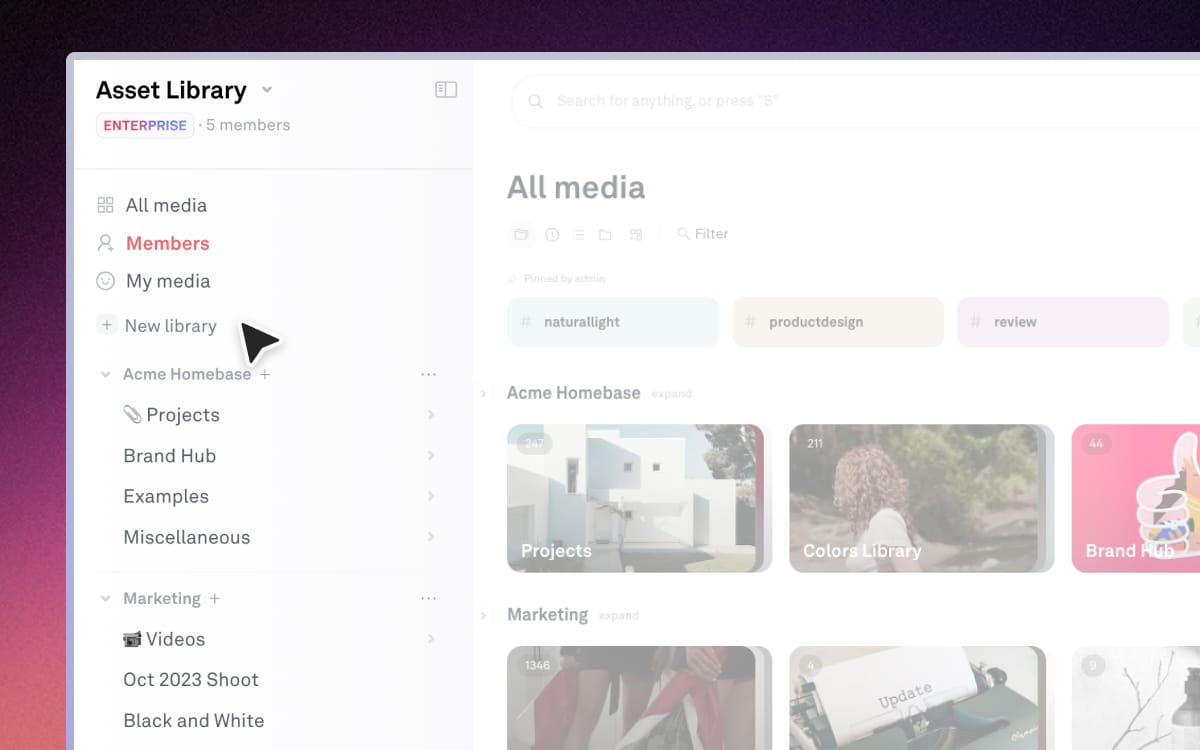
Workspace owners and admins can create libraries.
- Start a library: in the sidebar, click + New library.
- Add the details: enter a Name and Description, and add a Thumbnail if you like.
- Invite people (optional): on the Members step, add people by email, or turn on the Invite link to share. You can also do this later.
- Finish: click Create library.
Invite and manage members
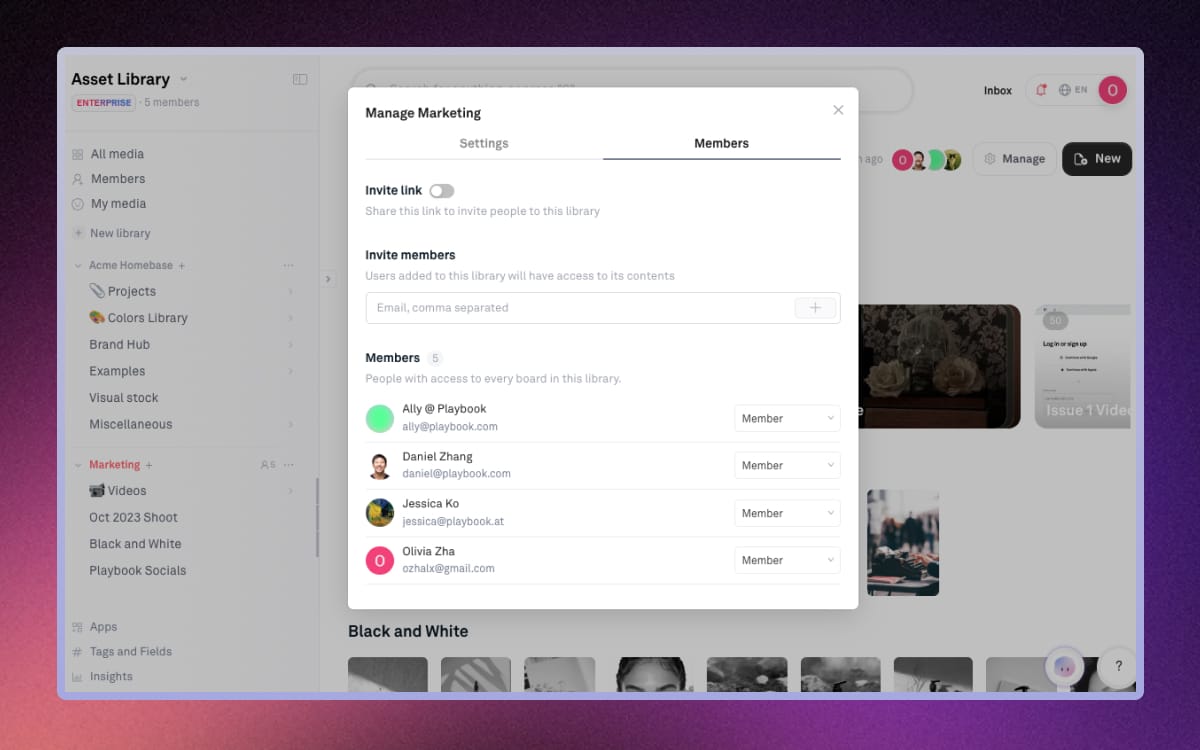
Click the member count next to a library's name in the sidebar, or click Manage on the library page, and open Members.
- Invite by email: under Invite members, add email addresses. People join as Member, and anyone new to your workspace gets an invitation to join it.
- Share an invite link: turn on the Invite link and share it. Click Reset link to replace the old one.
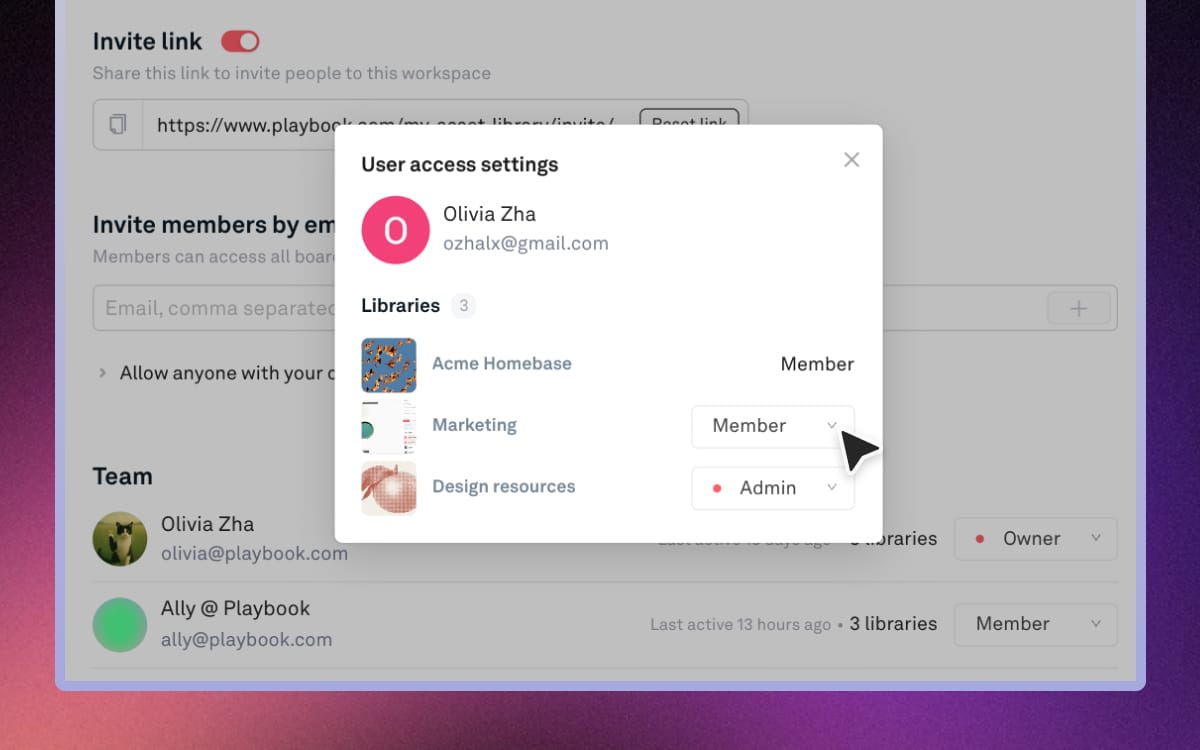
- Change a role: use the role dropdown next to someone's name.
- Remove someone: choose Remove from library.
Workspace admins can also see everyone's access from the People page: click N libraries next to a person to change their roles or Add to libraries.
A board shared directly with someone gives them access to that board even if they're not a member in the library. They appear under Board collaborators.
Manage what's in a library
Everything in a library works like the rest of Playbook. Open the library's ⋯ menu in the sidebar for the main actions.
- Add a board: click the + next to the library's name, or choose New board from its menu.
- Upload files: open the library and drop files anywhere on the page.
- Move boards between libraries: drag a board in the sidebar into another library. You need edit access to the board and to both libraries.
- Sort and rename: choose Sort boards or Rename from the library's menu.
- Update the details: choose Settings to change the name, description or thumbnail, then click Update library.
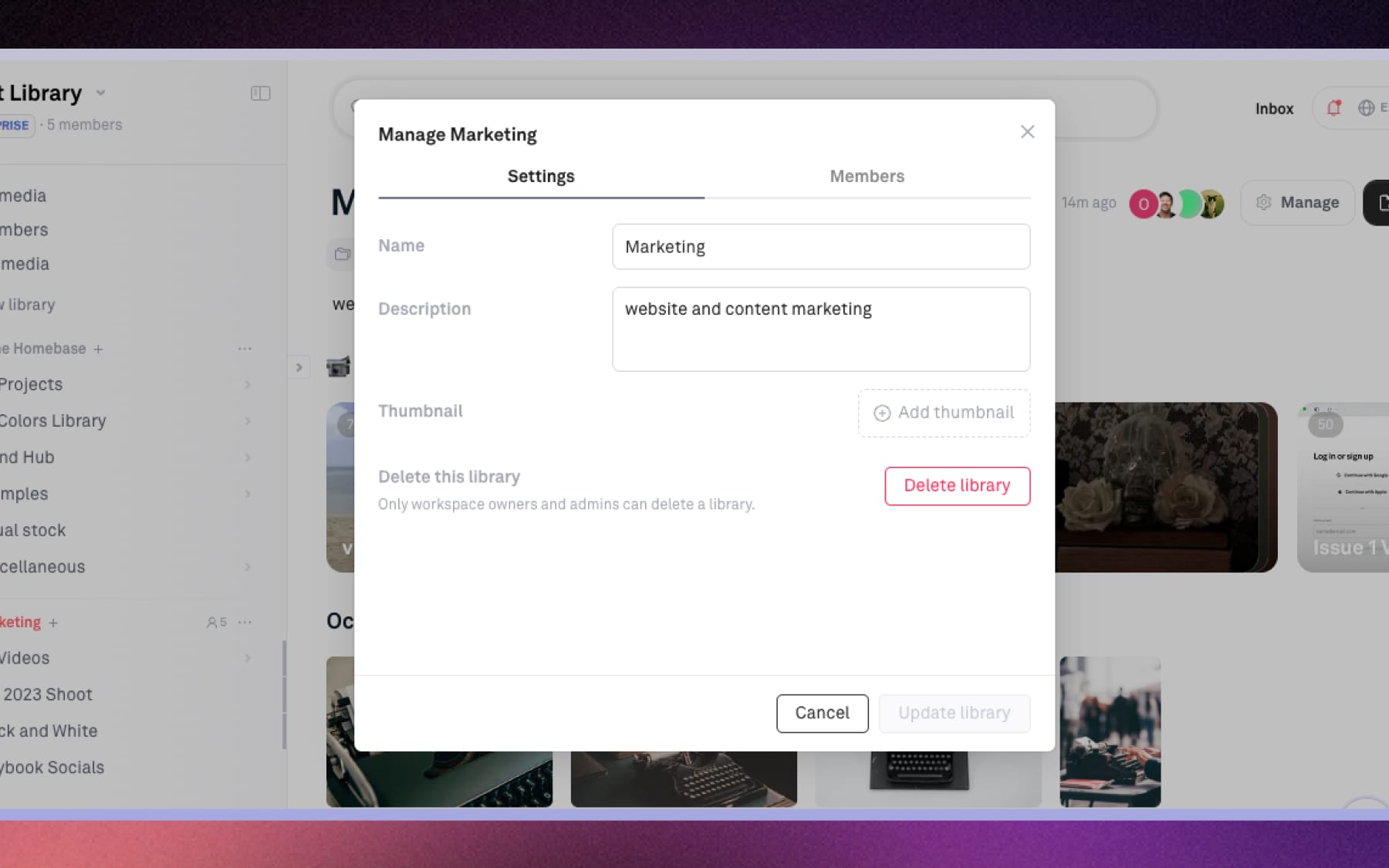
Delete a library
Workspace owners and admins can delete any library except the default one. Open the library's Settings and click Delete library. Its boards and files move to Trash, where admins can restore the whole library, or restore its boards and files to another library.
Related tutorials
- Members, guests & permissions: invite people to your workspace and share individual boards.
- How to create & use boards: build out the boards inside a library.